The hub rule, in Google’s own words
Start here, because it decides what you can buy today. Google publishes that a Matter-enabled hub has to be set up on your wireless network before Matter devices can be added at all, and it lists the hub’s three jobs as adding Matter devices, controlling them locally, and controlling them remotely when you are away.
Google publishes the hardware that counts, by category. Speakers: the Google Home Speaker, Nest Audio, Nest Mini, Google Home Mini and the original Google Home. Displays: Nest Hub (1st gen), Nest Hub (2nd gen) and Nest Hub Max. Routers: Nest Wifi Pro (Wi-Fi 6E). Streamers: the Google TV Streamer (4K). Plus select TVs compatible with Google Home, where Google tells you to “refer to the manufacturer’s manual or website for its up-to-date technical specifications” rather than taking Google’s word for it.
There is a second, shorter list that matters if you buy anything on Thread. Google says that where “your Matter devices use a mix of Thread and Wi-Fi”, “you need a hub device that also works as a Thread border router” — which it defines as “a device that works as a special hub to connect all of your Thread devices together”. The devices Google lists as doing both are the Google Home Speaker (2026), Nest Hub (2nd gen), Nest Hub Max, Nest Wifi Pro (Wi-Fi 6E) and the Google TV Streamer (4K). A Nest Mini will carry Matter over Wi-Fi; it will not carry Thread.
The payoff is real, and it is the reason Matter is worth waiting for rather than avoiding. Google states that Matter devices “work locally over your existing home wireless network without the need to connect to the cloud over the internet”, and that “Smart devices that use Thread communicate faster than devices that use Wi-Fi”. Nothing on the account-linking route can say that.
Two routes in, and they fail in different ways
Google documents exactly two ways a third-party device shows up in your Google Home app, and knowing which one you are on tells you what will eventually go wrong.
The Matter route. “For Matter-enabled devices, you can set those up using the Google Home app” — or share them in from the maker’s app, or add them through Matter’s Multi-Admin feature so two ecosystems can hold the same device at once. The prerequisite is the hub above. The failure mode is that you buy the device before the hub and it sits in a drawer.
The account-linking route. For everything else, Google’s instruction is that “if a third-party device isn’t Matter-enabled, set it up in the manufacturer’s app before your start” [sic], then pick the maker’s service in Google Home and tap “Link app” or “Check for devices”. It needs no extra hardware, which is why four of our five picks use it. It also routes every command through the maker’s cloud, and Google publishes two limits worth reading twice: “You can’t unlink individual devices with the Google Home app” and “When you unlink a service through these steps, it removes all devices by that service”. One bad link, and the whole brand goes with it.
Google’s own article supplies the cautionary example, which is why we quote it rather than theorize: it records that Belkin ended cloud service for Wemo devices on January 31, 2026, so those devices now appear offline. That is the account-linking route’s worst case, documented by the platform itself. A device that keeps a local path — a Hue Bridge, a card in a doorbell, a thermostat on the wall — survives it. A cloud-only plug does not.
Why Google’s own thermostat is the easiest device here
The Nest Learning Thermostat is first for a boring reason: there is no route to choose. It is Google hardware, so it is set up in the Google Home app directly — Google’s own Heat Pump Balance article sends you to the Google Home app “if you have a Nest Learning Thermostat (4th gen) or a Nest Thermostat” — and there is no third-party service to link and therefore no service to lose.
It is also the device where control is worth the most money, which is a separate argument from the ecosystem one. We will not put a savings figure on it, because Google does not: its scheduling article says Home/Away “learns when you are home or away to save energy” and publishes no percentage, no dollar figure and no ENERGY STAR statement for any Nest model. We report that absence rather than filling it in with someone else’s number. If you want the energy case made properly, with the one body that does publish figures, read our energy-efficiency device ranking, and if you have a heat pump, the heat-pump thermostat page is where the Nest earns its first place outright.
Two honest cons stay attached. It is the most expensive thermostat we list, and like most smart thermostats it often wants a C-wire — a problem the Nest does not ship a solution for, where the ecobee Premium includes an adapter. If you are not committed to Google, the ecobee is the thermostat that works everywhere; our Nest vs ecobee comparison is the long version, and what a C-wire is is worth five minutes before you order anything.
Lighting: buy the Bridge, not just the bulbs
Hue is the lighting pick, and the Bridge is the reason. Hue publishes its Google setup as the account-linking route — open the Google Home app, tap the plus icon, “Set up device”, “Works with Google”, pick Philips Hue, then on the Hue account page “Tap Yes to grant the Google Home app permission to control your Hue lights”. What you need, in Hue’s own list: Hue lights, a Google Assistant-enabled device (“just use your mobile device!”), the Google Home app, and the “Hue Bridge (for full functionality)”.
Note how Hue phrases that last item — recommended, not required. Hue also states that the Bridge “unlocks even more features, including support for Matter”, which is the move that matters here: with the Bridge, your whole lighting system can arrive in Google Home over Matter instead of over Hue’s cloud, and the Zigbee network under it keeps the lights switching whether Google is reachable or not. Checked on the date in our sources, Hue’s Google page does not mention Bluetooth-only control at all, so it makes no claim either way about running Hue in Google Home without a Bridge. We are not going to invent one.
Hue’s published example commands are the ordinary ones — “Turn off the lights in the kitchen”, “Turn the bedroom blue”, “Dim the lights to 60%” — and that is the point. The reason to pay Hue money is not the voice commands, which every bulb has; it is that the Bridge is a real local controller and the bulbs are the most reliable ones sold. Our smart bulb ranking covers the cheaper Wi-Fi and Matter alternatives if the Bridge is a box too far.
The plug: start with the one that needs nothing
For a first smart plug in a Google house, the Kasa EP25 mini in a four-pack is the right answer specifically because it is not a Matter device. It joins your Wi-Fi in the Kasa app and links to Google from there, which means it works on day one with no hub, exactly as TP-Link publishes: “Once setup is complete, the smart plug can work with smart home ecosystems like Amazon Echo and Google Home”, and “After connecting the Kasa smart plug to Wi-Fi, it can be linked to Amazon Echo or Google Home for voice control”.
Two things we will say plainly rather than dress up. First, that is the whole of what TP-Link documents for Google on that page — no Google-specific device list, no linking steps, no supported command list, just a link to a video. Compared with Yale’s article, which prints its commands, Kasa’s Google support is published but undocumented, and we are not going to quote a command list that does not exist. Second, it is on the account-linking route, so it is exactly the kind of device the Wemo shutdown should make you think about. The upside is that it is the cheapest way to make four lamps and appliances controllable, it needs no hub, and there is no subscription anywhere in it.
When you do have a Matter hub, the plug answer changes to the Tapo P110M — same price class, Matter-certified, and TP-Link publishes per-plug energy figures with it, which is a genuinely different product. Our smart plug ranking and Kasa vs Tapo lay out the choice between TP-Link’s two brands in full.
The front door, and the caveat Yale publishes
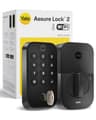
The Yale Assure Lock 2 is the lock pick, and Yale is unusually forthcoming about what Google can and cannot do with it. The published commands are “Hey Google, lock my front door”, “Hey Google, unlock my front door” and “Hey Google, is my front door locked?”, with “Hey Google, is my front door closed?” needing the optional DoorSense sensor. For unlocking, Google prompts for your security PIN and you say it back — locking and status checks are not described as needing one.
The caveat is the hardware. Yale’s Google article states “Your Yale Assure lock must be connected to Wi-Fi using the Wi-Fi Connect Bridge”, and the Assure Lock 2 ships in several radio versions. On the Wi-Fi model the radio is built in and does that job; the Bluetooth-only version is the wrong one to buy for Google, and a Z-Wave module needs a Z-Wave hub instead. Match the version before you order. Our Google Home smart lock ranking compares it against the Schlage and August alternatives on exactly that question, and whether smart locks need a subscription covers the fees some brands attach to remote access.
The doorbell: Google is the documented ecosystem, not the afterthought
The Reolink Battery Video Doorbell (2nd Gen) is here because of an inversion that is rare in this category: Google Home is the ecosystem Reolink documents, and Alexa is the one listed as “Coming Soon”. Every other doorbell we carry treats Alexa as the first citizen. If you run a Google house, that is the right way round for once.
The rest of the spec sheet is the reason it is a pick rather than a curiosity. Reolink states “No Monthly Fees for Local Storage” and lists four places the footage can go — a microSD card up to 512GB, a Reolink Home Hub, an NVR, or your own FTP server — which is more storage freedom than any other doorbell on this site. It is dual-band 2.4/5GHz, which no other battery doorbell here publishes. The sensor is a square 2048 x 2048 in a 1:1 frame, so a visitor and the parcel on the step fit in one shot instead of one cropping the other, and Reolink publishes IP65 plus up to 300 days of battery on its own usage figure.
The honest cons: that square sensor is listed at 15fps, Reolink publishes no included indoor chime for this model, and if anyone in the house has an Echo, “Coming Soon” is not a feature. Our no-subscription video doorbell ranking puts it against the eufy, Tapo and Aqara alternatives.
The five picks, side by side
Every row is read from the maker's or Google's own documentation on the dates in the sources below. 'No command list published' means we found no first-party list — it is not a claim that voice control is missing. Matter support shown here is the maker's published claim, and in Google Home it still depends on the hub rule above. | Nest Learning Thermostat | Hue Essential Starter Kit | Kasa EP25 (4-pack) | Yale Assure Lock 2 | Reolink Doorbell (2nd Gen) |
|---|
| Route into Google Home | Google's own hardware — set up in the Google Home app | Account link ("Works with Google"); Matter via the Bridge | Account link after Kasa-app setup | Account link (Yale account to Google Account) | Account link (Reolink documents Google Home) |
|---|
| Needs a Matter hub first | No | No for the account link; yes to arrive over Matter | No | No | No |
|---|
| Extra hardware the maker names | None, but a C-wire is often needed | Hue Bridge "for full functionality" | None | Yale: "must be connected to Wi-Fi using the Wi-Fi Connect Bridge" | None; optional Home Hub or NVR for storage |
|---|
| Keeps working if the maker's cloud stops | Thermostat keeps running on the wall | Yes — Zigbee on the Bridge keeps switching | No — cloud-linked Wi-Fi plug | Keypad and key still work; voice does not | Yes — records to its own card |
|---|
| Monthly fee for the core function | None | None | None | None | None — Reolink states "No Monthly Fees for Local Storage" |
|---|
| Maker publishes Google voice commands | n/a — Google's own device | Yes — six examples published | No command list published | Yes — four commands, PIN required to unlock | No command list published |
|---|
| Also works with Alexa | Yes | Yes | Yes | Yes | Listed as "Coming Soon" |
|---|
| Also works with Apple Home | No | Yes | Yes | No | No |
|---|
Worth knowing once the hub exists
Three devices we carry change position the moment there is a Matter hub in the house, and they are worth naming so you can plan the order you buy in rather than rebuying later.
The Tapo P110M is the plug upgrade: Matter-certified, so it joins Google Home, Apple Home, Alexa or SmartThings without a brand bridge, with per-plug energy figures TP-Link publishes. The Kasa EP40M is the only outdoor plug we list, IP64 and rated by TP-Link from -4°F to 122°F, with two independently scheduled outlets. And the ecobee Smart Thermostat Premium is the thermostat to buy if the household is genuinely mixed — it is the only one we carry that works with Apple Home, Alexa and Google, and it ships the C-wire adapter the Nest does not.
If you are starting from nothing, the order that wastes the least money is: the thermostat (biggest load, no hub needed), then plugs and bulbs on the account-linking route, then a Google speaker or display when you want voice and a Matter hub in the same purchase, and only then Matter and Thread accessories. Our guide to Matter and Zigbee vs Z-Wave vs Thread explain what you are actually choosing between.
Not picked, and exactly why
A Google speaker or display. This is the gap a reader will notice first, so here is the honest reason. Google’s own hub list makes a speaker or display the thing to buy before any Matter accessory, and we carry none — and on the date of this page we could not find a listing we were willing to rank. Checked live that day, the only in-stock Nest Hub (2nd gen) and Nest Mini listings we found were priced well above Google’s own list prices with inventory in the low single digits, and the current-generation Google speaker listing we found does not name its model in the title, so there is no honest way to tell a reader what is in the box. We would rather say that than point you at a marketplace reseller. Buy a Google speaker or display from Google or a first-party retailer, check it against Google’s published hub list, and use this page for what goes on the network afterwards. Our Alexa vs Google comparison covers the ecosystem decision itself.
Cameras. Several cameras we carry list Google Home support — the eufyCam S330, the Reolink Argus PT Ultra, the Tapo C120 and the Wyze Cam v4 among them — but what “works with Google Home” buys you for a camera varies from a full live feed on a display down to a name in a device list, and the makers document it thinly. Rather than rank cameras on a claim we cannot pin to published behavior, we have left them off and kept the ranking to device classes where the documentation is concrete. Our camera ranking is sorted on storage and fees instead, which is the axis we can actually source.
Matter-only accessories as picks. The Govee A19 and the two Matter plugs are good products and all three are the wrong first purchase for a Google household with no hub, for the one reason this page opened with. They are named above rather than ranked, with the hub prerequisite attached.
The Nest Thermostat (the cheaper one). It is in our registry and it is a fine thermostat, but on a page that has one thermostat slot the Learning model is the one with the sensor in the box. The thermostat ranking compares the two properly.
One security job worth doing on the same evening
Every device above reaches your house through an account, and on the account-linking route that account is the whole of the security model. Use a unique password on each maker’s app and on the Google Account itself, turn on two-step verification on the Google Account first since it is the one holding the rest, and check what a linked service can do before you grant it — Google’s own warning that unlinking removes every device from that service cuts both ways. Our guide to securing smart home devices is the full version, and it is a better use of an hour than a sixth device.